

Small Space, Big Performance: The Home-Office Setup That Makes Any Laptop Feel Faster

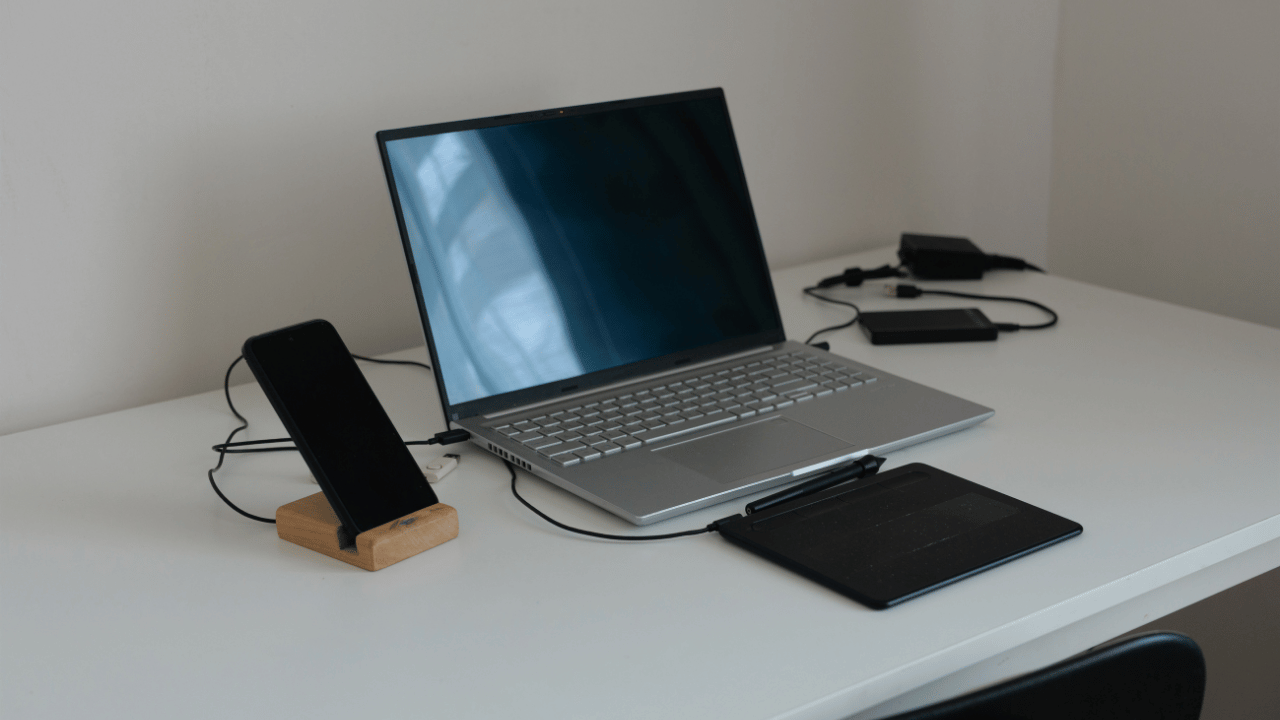
A great workspace doesn’t need a big room. With a few simple moves, you can make a tiny desk feel calm, your laptop feel faster, and your calls sound clearer—without buying a whole new PC.
1) Start with comfort: the quick ergonomic setup
Screen height: Put the top of the screen at or just below eye level. Your eyes should look slightly down at the center of the screen (about 15–20°). This reduces neck strain.
Keyboard & mouse height: Keep them roughly at elbow height so wrists stay straight and shoulders relaxed.
Chair & body: Sit back with your lower back supported, shoulders relaxed, feet flat. Small tweaks prevent end-of-day aches.
Why this helps performance: when your body is comfortable, you can focus longer and avoid “micro-breaks” that interrupt flow.
2) One-cable desk: tidy cables, calmer brain
Use a USB-C/USB4 dock so one cable handles power, display, and accessories.
Route cables along the desk edge, use Velcro ties, and keep the power strip off the floor where feet can’t snag it.
Power safety, quickly: use a surge protector (not a plain strip) and don’t daisy-chain strips together—this risks overload and can be a fire hazard. Plug high-watt gear (space heaters, kettles) straight into a wall outlet.
Need a dock, right-angle charger, webcam, or ties? See Sellx Laptop and desktop accessories.
3) Make the laptop feel new without buying a new one
RAM (memory): the “desk space” for your apps
If you keep multiple tabs, spreadsheets, Zoom, and a design/doc app open, 16 GB is a great default in 2026; 32 GB helps heavy multitaskers and creators.
How-To, DIY & Expert Content
If your laptop allows two sticks, use dual-channel (e.g., 2×8 GB or 2×16 GB). It increases memory bandwidth and keeps things smoother—especially on modern integrated graphics.
Storage (SSD): the biggest “speed jump” for older laptops
If you still have a hard drive (HDD), moving to an SSD makes everyday tasks snappier: faster boot, faster app opens, quieter, and more shock-resistant.
NVMe SSDs are the newer, faster type (great for big files). If your laptop supports NVMe, choose it; if not, a SATA SSD still feels far faster than an HDD.
Keep 10–15% free space on the SSD. Drives can slow down when nearly full; vendors recommend leaving some room so maintenance tasks (TRIM/garbage collection) work well.
Looking for the right RAM/SSD size for your model? Browse Sellx memory and Storage
4) Airflow in a small space: cooler = steadier speed
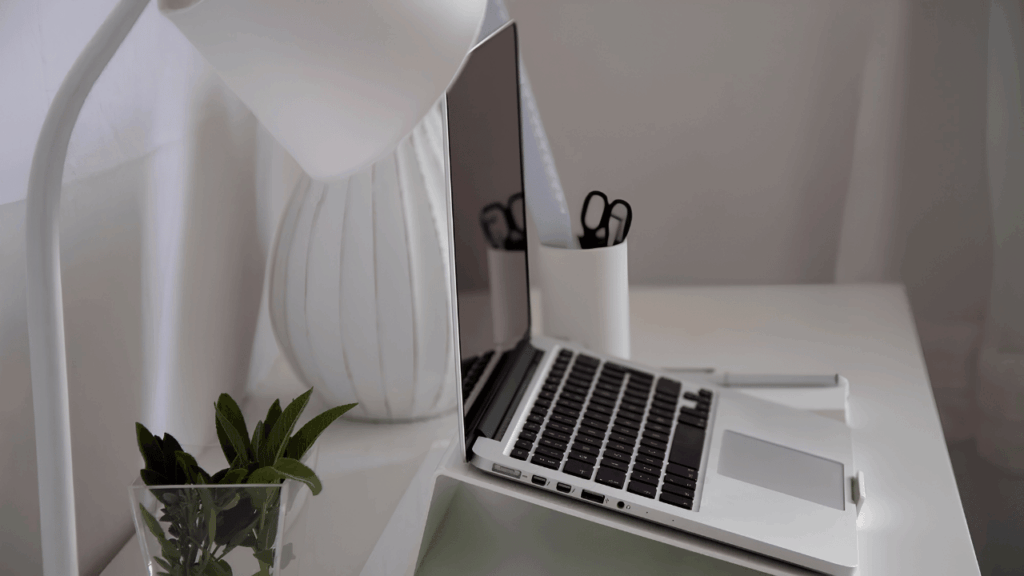
Do not block vents. Put the laptop on a hard surface, not a blanket. A small stand/riser helps air flow.
Dust the vents every month or two; loud fans at idle often mean dust. HP’s support docs recommend cleaning vents and keeping a clear space around the laptop.
5) Windows basics that quietly help
Stay current with Windows updates and drivers—many stability fixes and battery improvements arrive this way.
For security (and future updates), Windows 11 needs TPM 2.0 + Secure Boot on supported hardware. If your machine can’t meet the basics, plan for a replacement later; avoid risky “bypass tools.”
6) Weekly 10-minute care routine (small desk edition)
Wipe & reset: dust the desk, wipe the screen with a soft cloth (no harsh chemicals).
Cable sweep: tighten Velcro ties, check nothing is pulling or pinched.
Air check: clear vents; quickly blow out dust if needed. HP’s docs specifically note ventilation and clean vents to reduce heat.
Update & tidy: run updates; remove apps you don’t use.
Storage sanity: keep 10–15% free so the SSD stays responsive.
Backups: keep class/work files in cloud + an external copy (3-2-1 is ideal).
7) Tiny decision tree: upgrade or replace?
Upgrade first if: you can add RAM/SSD, temps are under control, and the laptop supports Windows 11 security basics (TPM 2.0/Secure Boot).
Replace if: RAM is soldered and maxed, thermals throttle constantly even when clean and elevated, or you can’t meet Windows 11 security requirements for your work needs.
FAQs
Q1) Is NVMe always better than SATA SSD?
Both feel fast for office work; NVMe shines with big files and many small reads/writes. If your laptop supports it and the price is close, go NVMe.
Q2) Do I really need 32 GB RAM?
Only if you keep many heavy apps/tabs or large files open. 16 GB suits most home-office users today; 32 GB gives extra headroom.
Q3) How much free space should I keep on my SSD?
Aim for 10–15% free. Vendors note that near-full SSDs can slow down because the drive needs free blocks for maintenance.
Q4) Are power strips and surge protectors the same?
No. Only surge protective devices protect against voltage spikes. Use a surge protector, and don’t chain strips/protectors together.
Q5) My fans are noisy even when I’m just browsing. What now?
Check for dust, clear vents, and update software. If it continues, the laptop may be heat-soaked in a tight space or need service.
Takeaway
Set the screen and elbows at the right height, and your body will thank you.
A one-cable dock + tidy power keeps the desk calm (and safe).
RAM + SSD upgrades (with 10–15% free space) make older laptops feel new again—no giant budget needed.
This article is part of the HOGDigest editorial series.
Originally written by [HOG Team] and republished with permission.
→ Explore HOGDigest






 Living Room
 Armchairs
 Bar
Bar Coffee Tables
 Sofas
Sofas Side Tables
 Shelving
 TV Consoles
 Bedroom
 Beds
Beds Bedding Sets
 Dressers
 Mattress
 Pillows
 Wardrobes
 Bathroom
 Bathroom Accessories
 Showers & Bathtubs
 Water Heaters
 Water Closet
 Washbasin
 Dining
 Dining Tables
 Dining Chairs
 Dining Sets
 Dining Benches
 Sideboards
 Kitchen
 Cookware | Bakeware
 Cabinets
 Tableware | Serveware
 Big Appliances
 Small Appliances
 Sinks | Taps
 Storage | Organisation
 Utensils | Tools
 Lighting
 Ceiling Lights
 Table | Floor Lamps
 Light Bulbs | Hardware
 Outdoor Lighting
 Wall Lights
 Kids & Nursery
 Nursery furniture
 Kids Bedroom
 Kids Decor
 Chairs
 Swivel
 Visitors
 Tables | Desks
 Standard Desks
 Executive Desks
 Computer Desks
 Safe | Cabinets
 Bookshelves
 Credenzas
 Filing Cabinets
 Safes
Safes Lockers
 Conference
 Boardroom Sets
 Meeting Tables
 Seminar | Events
 Workstations
 Cubicle Workstations
 Open Workstations
 Reception
 Reception Desks
 Waiting Area
 School Furniture
 Classroom furniture
 Hostel Furniture
 Laboratory furniture
 Library Furniture
 Bistro Sets
 Metal Bistro Sets
 Rattan Bistro Sets
 Plastic Bistro Sets
 Wooden Bistro Sets
 Rattan
 Rattan Bar Sets
 Rattan Sofas
 Rattan Dining Sets
 Rattan Loungers
 Rattan Swing Chairs
 Rattan Accessories
 Shades & Canopies
 Cantilever Umbrellas
 Parasols
 Tents
Tents Gazebo
 Outdoor Essentials
 Outdoor Living
 Plants & Greenery
 Planters & Pots
 Garden Tools
 Appliances
 Cleaning Appliances
 Cooling & Air Treatment
 Home Finishing
 Carpets & Rugs
 Curtains & Blinds
 Décor
Décor Doors & Shades
 Paint & Wall Covering
 Plumbing Supplies
 Tools & Utility
 Hardware & Electricals
 Tools & Equipment
 Commercial & Specialty
 Hospital Furniture
 Supermarket
 Salon & Personal Care
 Pet Care